

Overview
A short post about a mistake that made it onto the big screen, and the small tool I built so it doesn’t happen again.
Recently I handled all of the DCP encoding for a screening of films from the Encounters Films Collective. The screening went well, with one exception: sitting in the theater, I (along with everyone else) watched three separate single frames of red “Media Offline” flash up on the screen, across two separate films.
Each one lasted about 1/24th of a second. That’s not long, but a solid red frame in a dark theater is hard to miss, and once I’d seen it, I couldn’t stop watching for the next one.
What Happened
My DCP pipeline for these films had three steps:
- Start with a ProRes master at the native resolution and frame rate (4 of the films were at 23.976, one was at 29.97).
- Re-encode that master at the round number frame rates that the DCP requires, (24 or 30 fps), in DaVinci Resolve 20. (I made an assumption that Resolve would be better at a frame rate conversion, I was mistaken.)
- Build the DCP in DCP-o-Matic, which handles scaling to the DCP resolution and adds the black pillarboxing as needed for the flat containers these films all used.
After the screening, I assumed this may be a projector playback issue, as I had carefully spot checked the ProRes masters, the converted frame rates, and the DCPs. But did not watch them end to end.
When I went back to troubleshoot, I found that at none of the red frames were in the original frame rate masters at all. It showed up in the whole number frame ProRes files, so Resolve created it during the frame rate conversion. I had done that conversion on the Deliver page, by changing the frame rate in the render settings of a 23.976fps timeline to 24fps for example, rather than conforming anything in the timeline itself.
I don’t have a definitive answer for why Resolve does this. What I do know is why I didn’t catch it before the screening: the delivery schedule was extremely tight this year, and I ended up spot-checking the files instead of watching each one top to bottom. (Rookie mistake, I know). A single offline frame is exactly the kind of thing a spot check will walk right past.
Building an automated QC Check
Once I knew where the problem came from, I wanted a way to catch it automatically. I worked with Claude on this, asking how to detect these frames using ffmpeg, and iterating from there into a small Python tool built on it.
The approach is simple. ffmpeg’s signalstats filter measures the average color of every frame in a file, and the script then looks at those numbers for two things:
- Red frames: a frame whose average color is strongly red, which is what Resolve’s offline slate looks like.
- Isolated outliers: a frame that looks very different from both the frame before it and the frame after it, while those two neighbors look similar to each other. That catches any one-frame flash or glitch, not just red ones, and it doesn’t trigger on normal cuts.
The first version needed me to run ffmpeg by hand and feed its output into the script. The current version is a single command:
python find_offline.py --input-directory /path/to/mastersIt runs ffmpeg itself, reads the frame rate, bit depth, codec and pixel format from each file, and checks every video in the folder. For each file you get a report listing the frame number and timecode of anything suspicious, and the raw stats are saved alongside it so you can dig in later. It also returns an exit code, so it can sit in a delivery checklist or script.
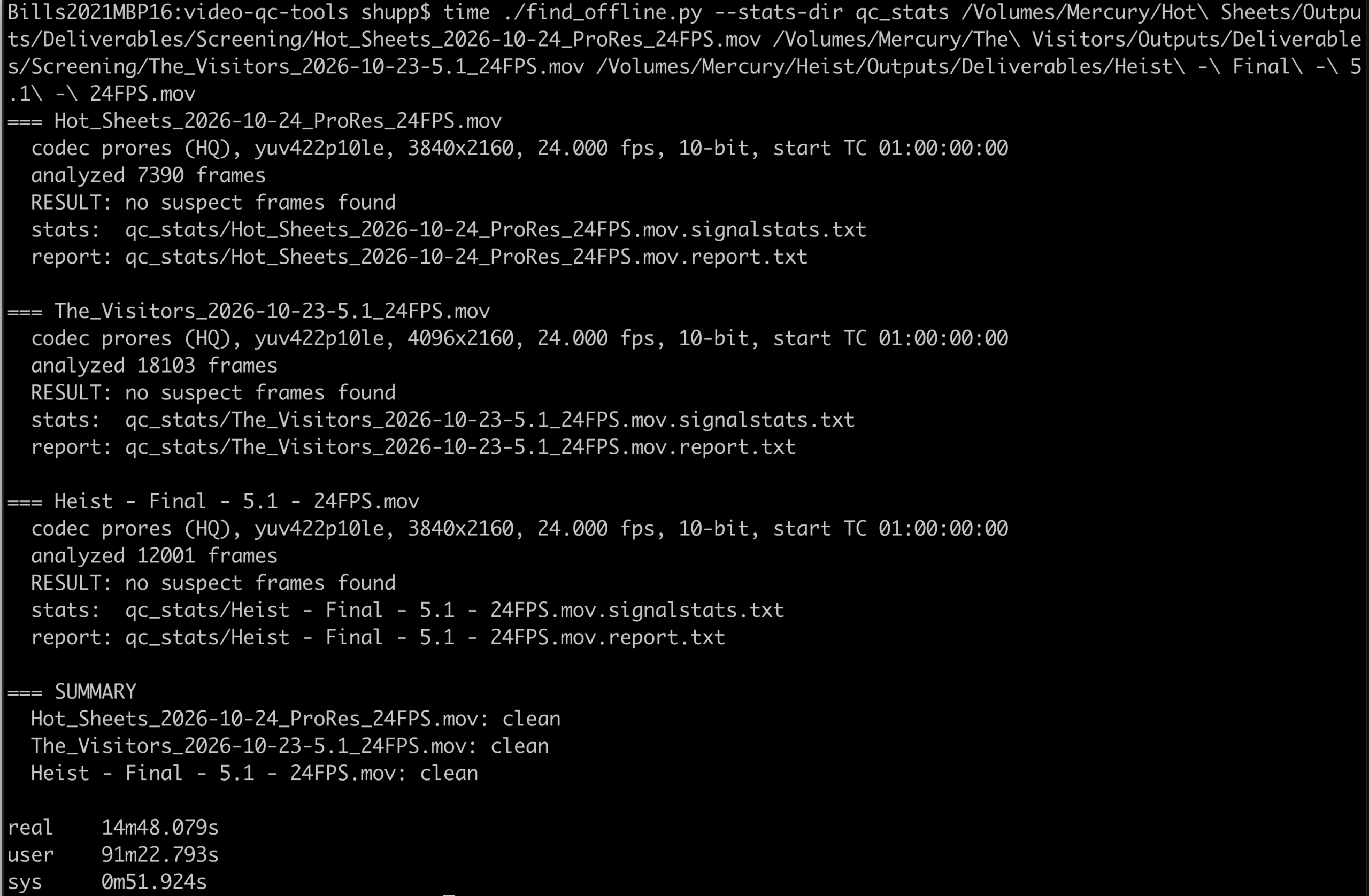
Across the 5 films that screened, it found exactly the 3 bad frames I had remembered. So two films were affected, the other three were clean.
The script, is available over on GitHub. It only needs Python3 and ffmpeg.
Here is an example of the script catching the media offline frames:

And here is an example of running against the three clean films:
Takeaways
- Watch the whole film, every time. Spot-checking isn’t QC. A compressed schedule is exactly when it’s tempting, and exactly when it bites.
- Add automated checks on top. A person skimming can miss a 1/24th-of-a-second flash. A script looks at every frame, every time. Run it on the output of each stage (the master, the 24 fps version, any DCP review export), so that if something shows up, you know which step introduced it.
- Don’t trust the Deliver page for frame rate conversion. I don’t plan to use Resolve’s Deliver page frame rate conversion for this again. I’ll be looking at alternatives: conforming the timeline to 24 fps before rendering, or letting DCP-o-Matic handle the 23.976 to 24 change itself.
Three red frames in a theater is a humbling way to learn this, and is something that should have been avoided with proper delivery time and QC. But at least I have learned form it, and have additional tooling to help catch this issue in the future.